This is my $120 Computer Networking course at UIT
This course is divided into four main parts, corresponding to the four layers of the TCP/IP model: Application, Transport, Network, and Link layers. We will temporarily skip the Physical layer, as this course focuses more on the software side of networking.
Images in this post are taken from the book "Computer Networking: A Top-Down Approach" by Kurose and Ross, which is the textbook for this course.
Application Layer
First, we come to the Web. The Web contains many objects stored on different web servers. These objects can be HTML files, images, videos,...
When we want to access a web page, we need to send an HTTP request to a web server. The HTTP request contains the URL of the resource we want to access, and the web server responds with the requested object.
HTTP
Therefore, HTTP is one of the most fundamental protocols in this layer. HTTP stands for HyperText Transfer Protocol. It uses a client-server architecture, where the client is often a browser and the server is a web server hosting the content.
There are two main features of HTTP that we should remember:
First, HTTP uses TCP, a reliable transport protocol (we will discuss TCP later in the Transport layer), to ensure that data is delivered correctly. This is how HTTP works:
-
First, the client initiates a TCP connection to the server on port 80 (or 443 for HTTPS). Server accepts the connection and establishes a TCP session.
-
Then, HTTP messages are exchanged over this TCP connection.
-
Finally, the connection is closed after the exchange is complete.
Secondly, HTTP is stateless. It means that each HTTP request is independent and does not know anything about previous requests.
But, how do we maintain user sessions if HTTP is stateless? For example, when we log in to a website, how does the server remember that we are logged in for subsequent requests?
There is a solution called cookies. We will discuss cookies in more detail later.
Now, let's talk about two types of HTTP connections: persistent and non-persistent.
-
HTTP non-persistent: TCP connection is closed after each pair of request and response.
-
HTTP persistent: TCP connection is kept open for multiple requests and responses.
Why this is in considered? In history, HTTP was originally designed as a non-persistent protocol. However, this approach has some drawbacks, especially about performance. There's a term called RTT (round-trip time), which is the time it takes for a signal to go from the client to the server and back. In a non-persistent connection, each request and response pair requires a new TCP connection, which means multiple RTTs for multiple requests, leading to increased latency.
Okay, next to two types of HTTP messages: request and response. HTTP messages is in ASCII text format, they are used to exchange information between the client and the server. An HTTP request message is sent by the client to the server, while an HTTP response message is sent by the server back to the client.
Below is an example of an HTTP request message:
GET /index.html HTTP/1.1\r\n
Host: www-net.cs.umass.edu\r\n
User-Agent: Mozilla/5.0 (Macintosh; Intel Mac OS X
10.15; rv:80.0) Gecko/20100101 Firefox/80.0 \r\n
Accept: text/html,application/xhtml+xml\r\n
Accept-Language: en-us,en;q=0.5\r\n
Accept-Encoding: gzip,deflate\r\n
Connection: keep-alive\r\n
\r\n
A HTTP request starts with a request line, including the method (GET), the URL (/index.html), and the HTTP version (HTTP/1.1). Then, there are several header fields that provide additional information about the request, such as the host, user agent, accepted content types,...
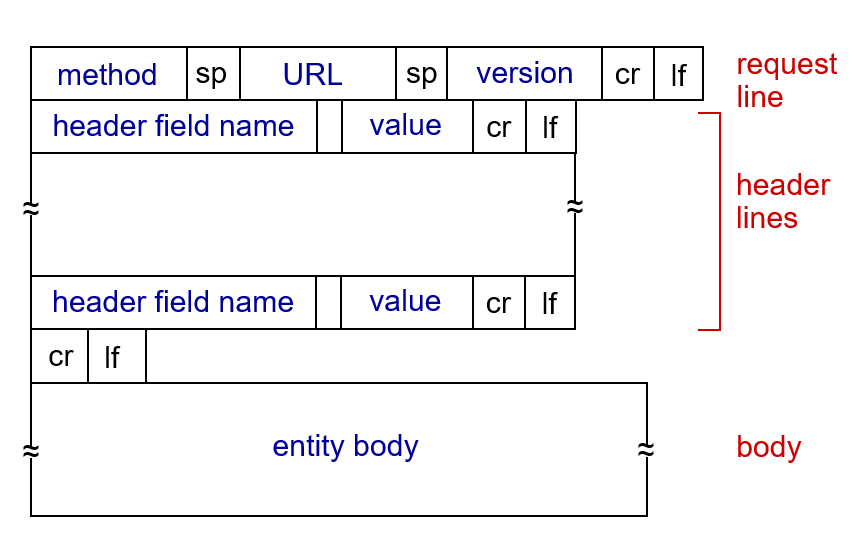
HTTP methods:
There are a lot of HTTP methods, but we will only discuss the two most common ones: GET and POST.
-
GET: used to request data from a source.
-
POST: used to submit data to the server.
HTTP status codes:
HTTP status codes are three-digit numbers in the HTTP response, indicating the result of the request. They are categorized into five classes:
-
1xx: Informational responses. This means that the request was received and is being processed. For example, 100 Continue means that the server has received the request headers and the client should proceed to send the request body.
-
2xx: Successful responses. This means that the request was successfully received, understood, and accepted. The most common is 200 OK, indicating that the request was completely successful.
-
3xx: Redirection messages. This means that further action is needed to complete the request, such as following a redirect. For example, 301 Moved Permanently means that the requested resource has been permanently moved to a new URL, and the client should use the new URL for future requests.
-
4xx: Client error responses. This means that there was an error in the request sent by the client. For example, 404 Not Found means that the requested resource could not be found on the server.
-
5xx: Server error responses. This means that there was an error on the server side while processing the request, such as internal server error (500) or service unavailable (503).
Cookies
Remind you that HTTP is stateless, so how do we maintain user sessions? The answer is cookies.
Imagine you log in to a website for the first time. The server will create a session for you and generate a unique session ID, called a cookie.
The server then stores this session ID to its database and sends it back to your browser in the HTTP response header named Set-Cookie. The browser will store this cookie and include it in the header of subsequent HTTP requests to the same server, using the Cookie header. This way, the server can identify you and maintain your session across multiple requests.
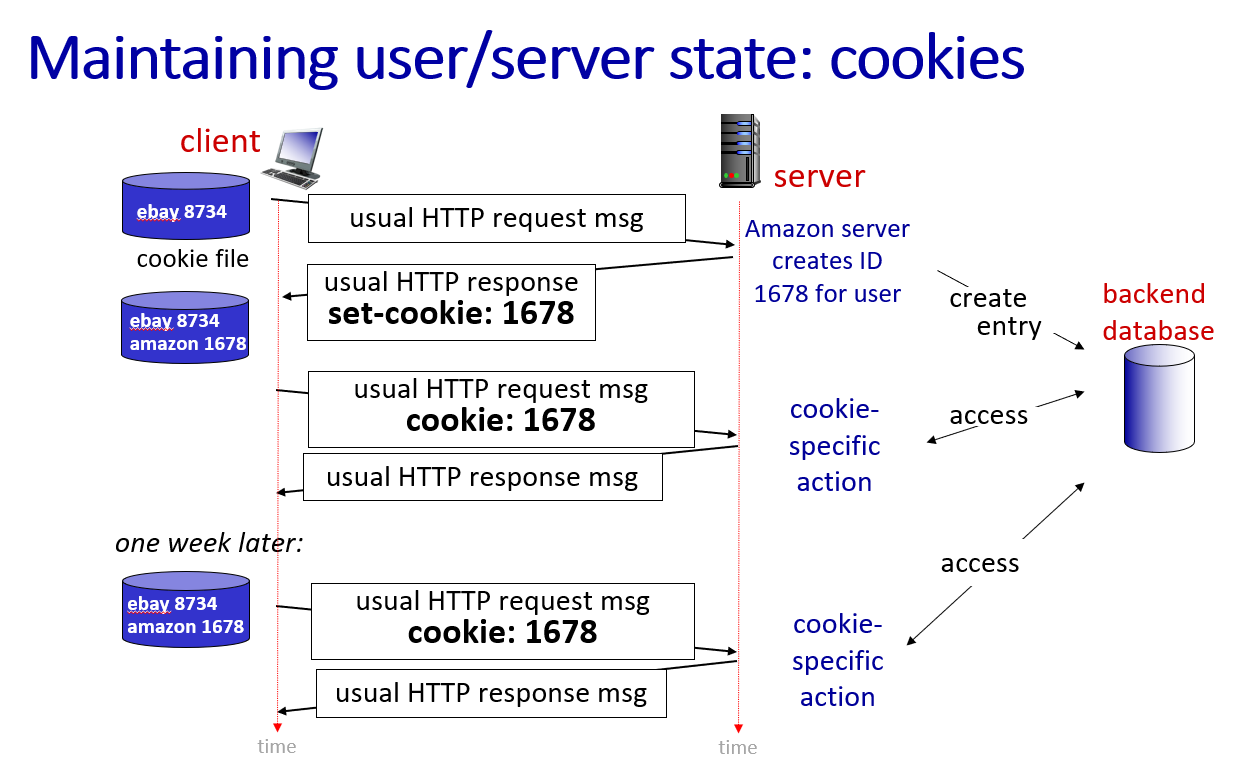
The type of cookie we just discussed is a first-party cookie, which is set by the website you are visiting. There is also a third-party cookie, which is set by a different domain than the one you are visiting, often used for tracking and advertising purposes.
How third-party cookies work? When you visit Website A, it may load an element (like an ad, a "Like" button, or a tracking pixel) from Ad-Server B. Because your browser is fetching content from Ad-Server B, that server can drop a cookie on your device.
Then, when you visit another website that also loads content from Ad-Server B, the browser will send the same cookie back to Ad-Server B, allowing it to track your browsing behavior across different websites.
Web caches
Caching is a technique used to improve the performance of the web applications by storing copies of recently requested resources in a memory called a cache. Web cache is also called a proxy server.
Let's try it on your browser. When you visit a website for the first time, your browser will take a long time to load the page because it needs to fetch all the resources from the server. However, if you refresh the page, it will load much faster because the browser can retrieve some of the resources from its cache instead of fetching them from the server again.
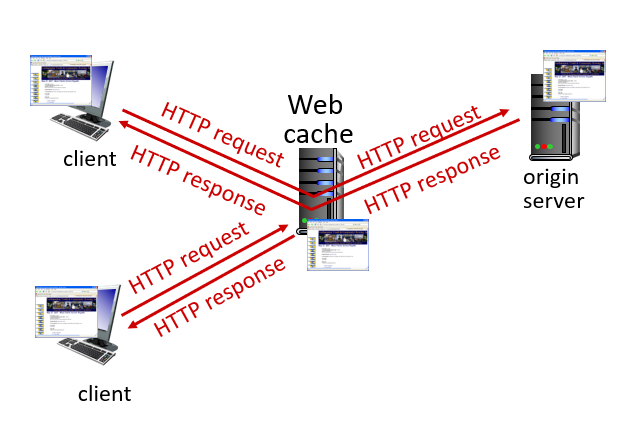
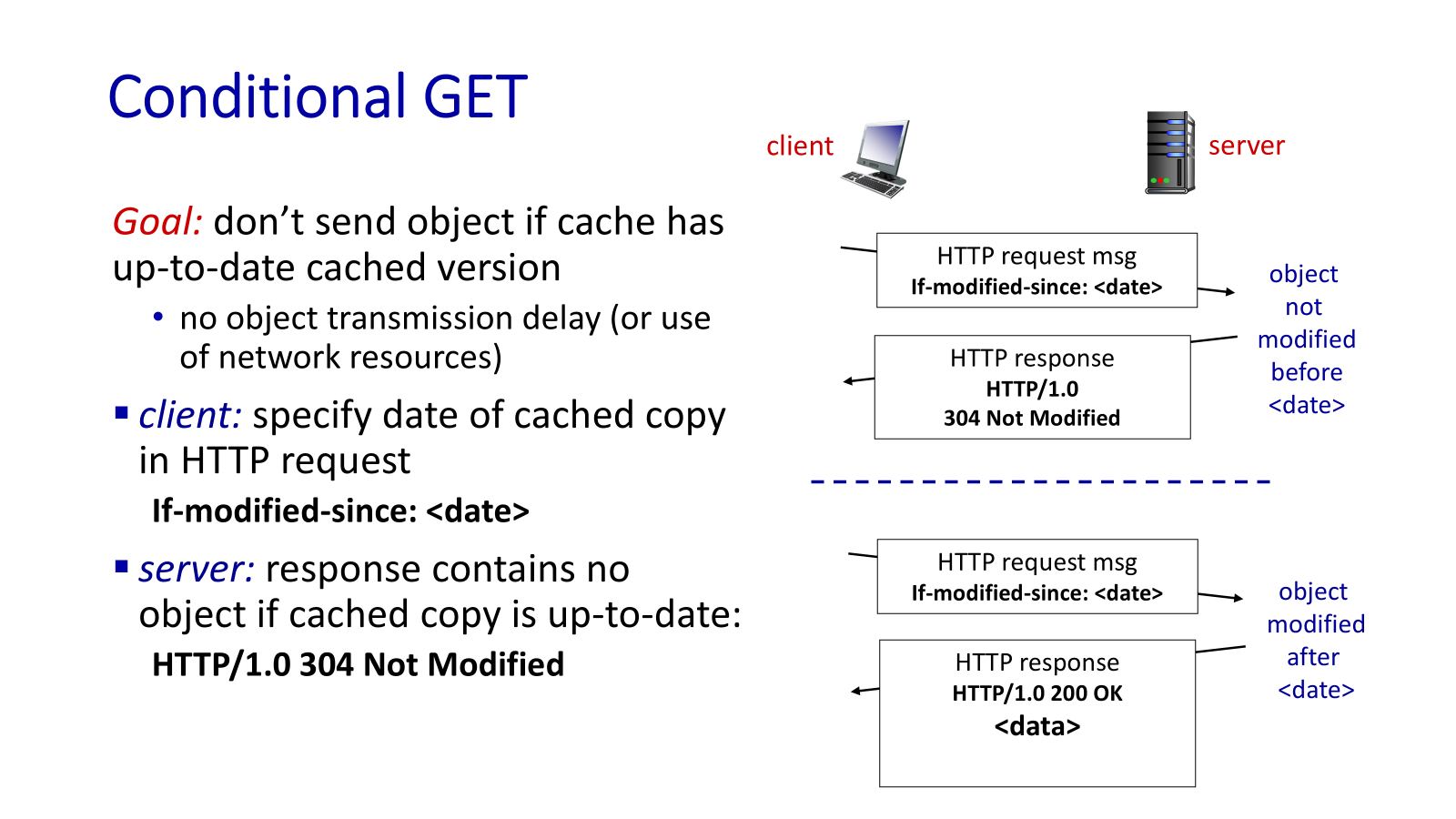
Then, go to conditional GET. This request asks the server to send the resource only if it has been modified since the last time it was requested.
This is done using the If-Modified-Since header in the HTTP request. If the resource has not been modified, the server responds with a 304 Not Modified status code, indicating that the cached version can be used. If the resource has been modified, the server sends the updated resource with a 200 OK status code.
Are you curious about how can we use applications like Gmail, Outlook to send and receive emails? There is a set of components and protocols that work together to make email communication possible. The main components include:
-
User agents: These are the applications that users interact with to send and receive emails, such as Gmail, Outlook.
-
Mail servers: These are the servers that store and manage email messages. They can be categorized into two types: outgoing mail servers (SMTP servers) and incoming mail servers (POP3 or IMAP servers).
-
Protocols: The main protocols used in email communication are SMTP (Simple Message Transfer Protocol) for sending emails, and POP3 (Post Office Protocol version 3) or IMAP (Internet Message Access Protocol) for receiving emails.
This is the overview of how email communication works:
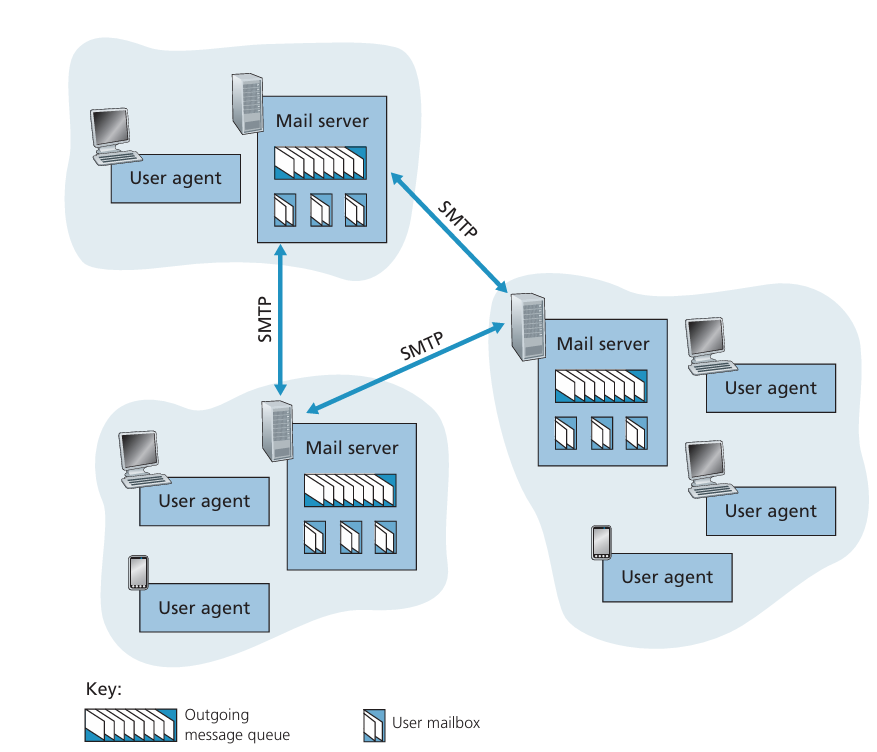
As you see, each client or a group of clients is connected to a mail server. When a user sends an email, the email client (user agent) uses SMTP to send the email to the outgoing mail server. The outgoing mail server then uses SMTP to forward the email to the recipient's mail server. Finally, the recipient's mail server stores the email and allows the recipient to retrieve it using POP3 or IMAP.
Now, let's dive into the details of how SMTP works. In fact, you can use only SMTP in CLI to send email, but definitely this is not user-friendly. So, applications like Gmail and Outlook are simply provide you the user interface to interact with the SMTP protocol.
I will take an example of sending an email using SMTP in CLI. First, you need to connect to the SMTP server:
openssl s_client -connect smtp.gmail.com:465 -crlf
After connecting to server, we have to "say hello" to the server and require to log in using our email and password.
(Note: "password" here is the app password, not your actual email password, this is a security measure to protect your account from unsecure applications like SMTP CLI):
EHLO Server
AUTH LOGIN
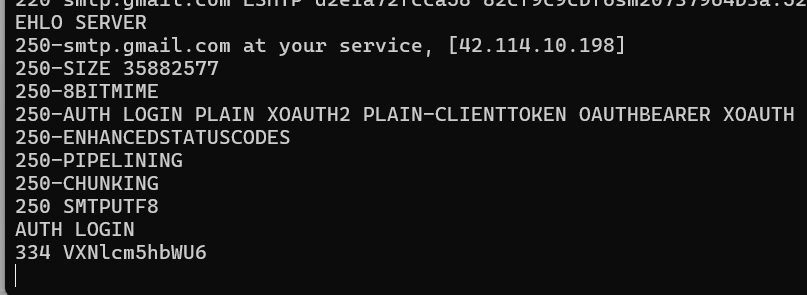
You can see that the server responds 334 VXNlcm5hbWU6, which is the base64 encoding of "Username:". So, we need to encode our email address in base64 and send it to the server.
After this step, the server will respond with 334 UGFzc3dvcmQ6, which is the base64 encoding of "Password:". Then, we need to encode our app password in base64 and send it to the server.
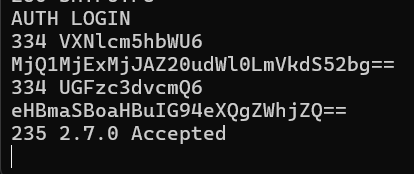
After successfully logging in, the server will respond with 235 2.7.0 Accepted. Now, we can start sending the email. First, we need to specify the sender and recipient of the email:
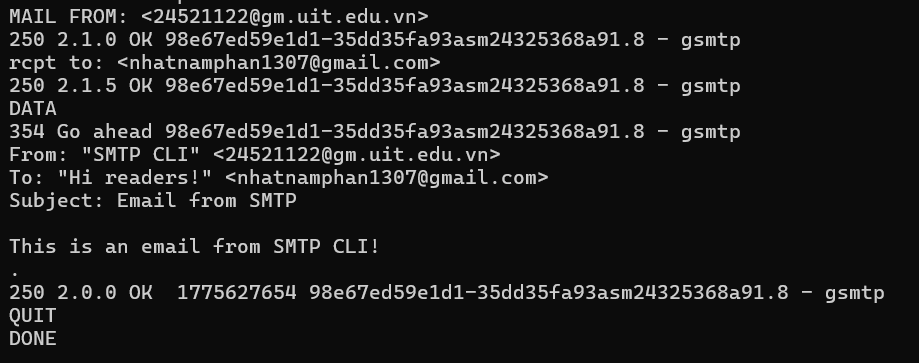
MAIL FROM:<sender@example.com>
RCPT TO:<recipient@example.com>
Then, use DATA to indicate the start of the email content. In this section, you can write the "From", "To", "Subject" headers, which appear in the email client. After the headers, you must leave a blank line before writing the body of the email. Finally, you need to end the email content with a single dot (.) on a line by itself.
This is the email I received in my Gmail inbox after sending the email using SMTP CLI:
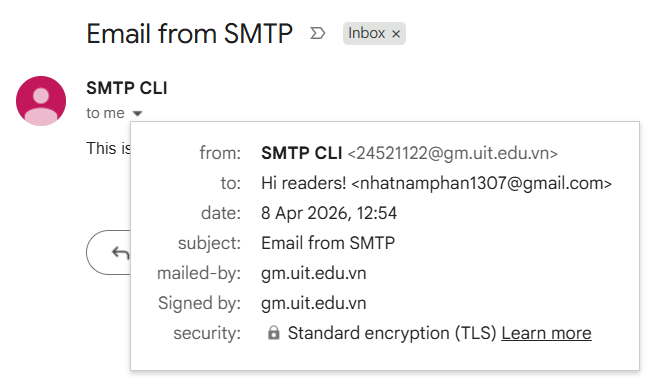
In fact, the "real" sender and receiver of the email are defined in the MAIL FROM and RCPT TO commands, which are not visible in the email client. The "From" and "To" headers in the email content are just for display purposes in user interfaces, you can even write any values you want.
This is how we can send an email. Now let's discover the rest of the email communication process, which is how the recipient retrieves the email from the mail server. This is done using either POP3 or IMAP protocol.
The main difference between IMAP and POP3 is: IMAP allows you to access and manage your emails directly on the mail server, while POP3 downloads the emails to your local device and removes them from the server.
From the previous example, I have used the recipient email address to reply to the email I sent. Now, let's try using IMAP to retrieve the reply email from the mail server. First, we need to connect to the IMAP server:
openssl s_client -connect imap.gmail.com:993 -crlf
After connecting to the server, we need to log in using our email and app password (no need to encode in base64 for IMAP). Then, we can select the mailbox we want to access (e.g., "INBOX") and search for the email we want to retrieve. Finally, we can fetch the email content using its unique identifier (UID).
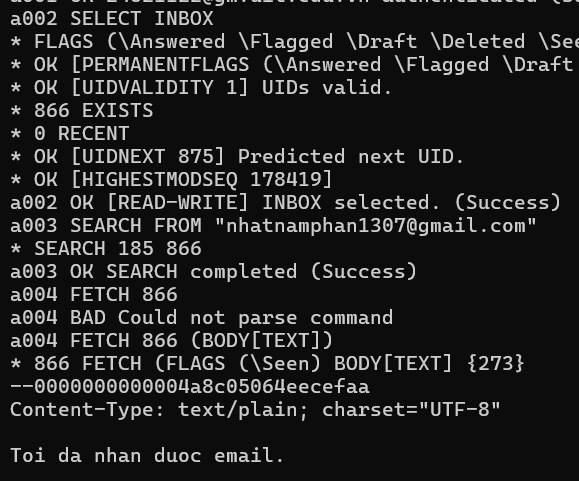
You can see that the email content is displayed. The a001, a002,... are the command tags, you can choose any tags you want.
We have discussed through the details of how email communication works, but there are still some questions:
-
How can we create and configure a mail server?
-
How can the mail server know where is the recipient's mail server?
To answer these questions, first you should observe the structure of an email address, which is in the format username@domain. The domain part of the email address is used to determine the mail server responsible for handling emails for that domain.
So we must have a domain, then we need a server to host the mail server software, it has a static IP address (we will discuss about IP address later in the Network layer, you can understand that it is a unique identifier for a device on the network). On this server, we will install and configure some software: a mail transfer agent (MTA) to handle the sending and receiving of emails using SMTP. We also need to set up a mail delivery agent (MDA) to manage the storage and retrieval of emails using POP3 or IMAP. And finally, we need a user agent to provide the interface for users to interact with their emails.
Okay, until now we have a mail server set up and running, so how can other mail servers know where to send the emails for our domain, and how can our mail server know where to send the emails for other domains?
The answer is DNS. We will discuss it now.
DNS
DNS stands for Domain Name System. First, remind that each device on the network is identified by a unique IP address. But it is obviously that humans cannot remember the IP addresses of all the websites they want to visit. Therefore, we need a system to translate human-friendly domain names (like Google.com) into IP addresses that computers can understand. This is the role of DNS.
About DNS, there are two main features you should remember: DNS hierarchy and DNS record types.
DNS hierarchy: DNS is organized in a hierarchical structure.
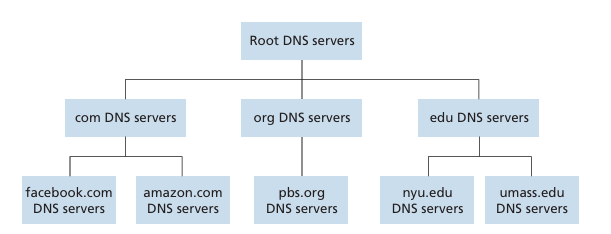
At the top of the hierarchy are the root servers, which are responsible for managing the top-level domains (TLDs) such as .com, .org, .net. Below the root servers are the TLD servers, which manage the authoritative name servers. These authoritative name servers manage the specific domain names and their corresponding IP addresses.
For example, user want to visit www.google.com. The DNS resolution process would involve the following steps:
-
Ask the root server for the IP address of the TLD server responsible for
.com. -
Ask the TLD server for the IP address of the authoritative name server responsible for
google.com. -
Ask the authoritative name server for the IP address of
www.google.com.
In the world, there are 13 root servers, but they are actually duplicated in many locations around the world to improve reliability and performance.
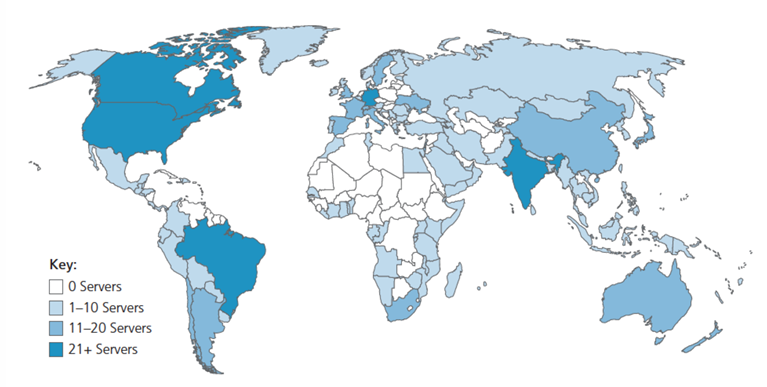
Besides the hierarchical structure, there is also a type of DNS server called local DNS server, which is provided by ISP (internet service provider, like Viettel, VNPT, FPT,... in Vietnam). When a user wants to resolve a domain name, the request is first sent to the local DNS server. A local DNS server has its own cache, so if the IP address for the requested domain name is in cache, the local DNS server will return the IP address to the user without making any requests. If not, the local DNS server will follow the hierarchical structure to resolve the domain name.
When the local DNS server have to follow the hierarchical structure, there are two ways to resolve a domain name to an IP address: iterative and recursive.
-
Iterative: The local DNS server will query each server in the hierarchy one by one until it gets the IP address. For example, it will first ask the root server, then the TLD server, and finally the authoritative name server.
-
Recursive: The local DNS server will ask the root server to resolve the domain name, and the root server will take care of the rest of the resolution process and return the IP address to the local DNS server.
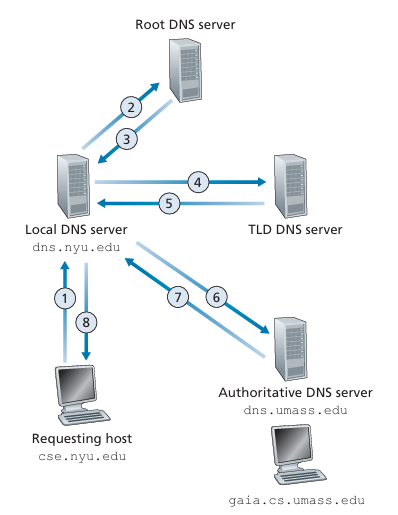
Iterative DNS Resolution.
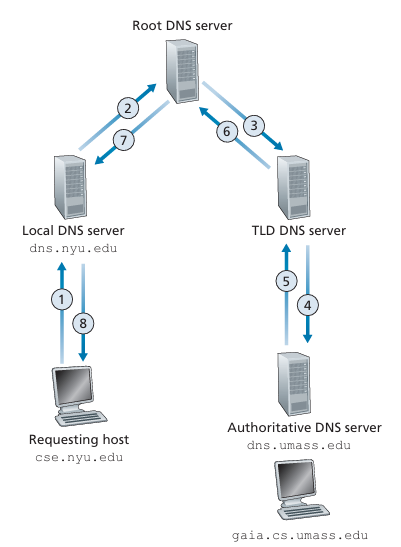
Recursive DNS Resolution.
DNS record types:
Remind that in the Email section, we have a question about how the mail server know where to send the emails for other domains.
Imagine that you have a domain and you host a web server and a mail server on it. In this case, how can the Internet know which IP address to use for each service? The answer is DNS record types. There are different types of DNS records that serve different purposes. The most common types include: A, CNAME, MX, and NS records.
A resource record is a four-tuple that contains the following fields: (Name, Value, Type, TTL), while the Name and Value fields depend on the type of the record.
-
Type
A: maps a domain name to an IP address. As an example,(www.google.com, 142.250.191.14, A)is a type A record that maps the domain namewww.google.comto the IP address142.250.191.14. -
Type
CNAME: maps a domain name to another domain name called "alias". In this case, theNamefield is the alias, and theValuefield is the original, or canonical name. As an example, (foo.com, dns.foo.com, CNAME) is a TypeCNAMErecord. So, when a user tries to accessfoo.com, the DNS resolution process will first resolvedns.foo.comto its corresponding IP address, and then return that IP address to the user. -
Type
MX: maps a domain name to a mail exchange server. In this case, theNamefield is the domain name, and theValuefield is the mail server. As an example, (google.com, mail.google.com, MX) is a Type MX record. So when an email has the domain part ofgoogle.com, the email will be sent tomail.google.comfor processing. -
Type
NS: maps a domain name to a name server, which is corresponding to the authoritative name server in DNS hierarchy. In this case, theNamefield is the domain name, and theValuefield is the name server. As an example,(google.com, ns.google.com, NS)is a Type NS record. This record defines the name of the server is responsible for managing the DNS records for a domain. So, when a user tries to resolvegoogle.com, the DNS resolution process will first query the name serverns.google.comto get the IP address ofgoogle.com.